You can edit report settings or change a report type without losing all your initial progress when building the report if you use the buttons within the Churchteams application rather than your browser's back button.
Adding Additional Filters or Options to a Report:
Sometimes you may run a report and realize you forgot to select a certain Option to be shown, or you want an additional Filter to be added, but you don’t want to start from scratch and rebuild.
- Ex: You wanted to see emails on the People Listing Report.
- Ex: You want to filter a report down based on Church Member Type along with your already selected Filters.
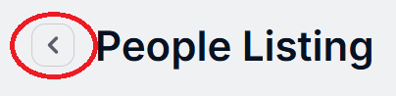
Rather than clicking the back arrow in your browser, which will cause you to lose all the filters you previously selected, in the Churchteams application, click the “Back” caret button next to the report title in the top left-hand corner to take you back to the Report builder screen. You will notice that this will hold all your previously selected Options & Filters, giving you the ability to add any additional Options or Filters as needed.
Changing a Report Type without losing your Filters
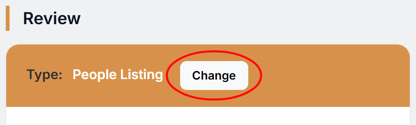
On the other hand, you may have selected all of the Filters you need for a report, only to run it and realize that it is the wrong TYPE of report (ex: you wanted it to be a Contribution Detail Report, not a Contribution Summary Report). Again, you will use the “Back” button in the Churchteams application (see image above) in order to keep your current Filters, and then on the Report builder screen, in the Review column, select “Change" (see image below). This will bring you to the Report selection screen, where you can select the TYPE of report that you want. Once selected, you will notice that it holds your selected Filters and Options, depending on the Options available on this report.