
Install Label Printer
- Install the label printer software and driver on the PC. The disk may have come with the printer, or you may have to download it from the label printer website. Make sure it is working with a test print. You can open the Notepad application, type a few words, and click Print.
- On the Printers and Scanners page, click on the printer, then Manage (in Windows 10) to set it as the default printer. On the same page, select Printing Preferences to set the default paper size to the size of the label you are using (2.4 for Brother Printer).
Customize Settings In Chrome
- Open Chrome, log in to Churchteams, and start check-in (Check-in > Start Check-in) with any Check-in view.
- Pick anyone in a group class or class associated with that check-in view that has labels enabled and click Print. This will open a Print screen.
- For Destination, choose your default printer
- For Layout/Orientation, choose Landscape
- If not already expanded, click “More Settings” to view additional settings
- Choose your Paper size (For a Brother printer, choose 2.4)
- For Margins, choose Minimum.
- For Options, uncheck “Headers and footers” and check “Background Graphics”
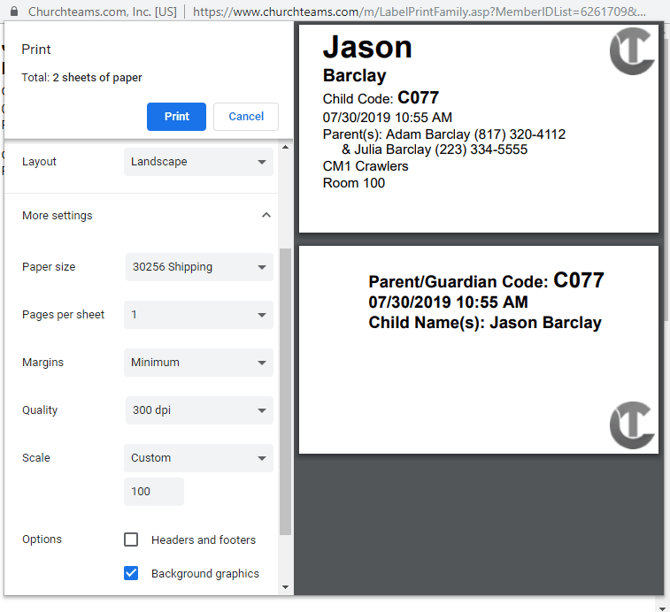
- Click Print to confirm that it is correct.
Save For Quick Access
- Once you get a clean print, close the webpage and completely quit Chrome. (This will save your settings)
- If you don't have a Chrome shortcut on your desktop, open Chrome, click on the three vertical dots in the top corner > Cast, save, and share > Create Shortcut.
- Right-click on the Chrome shortcut icon on the desktop (not in the taskbar) and click Properties.
- In the Target field, go to the end of the filename, click the space bar twice, and add --kiosk-printing, then click Apply.
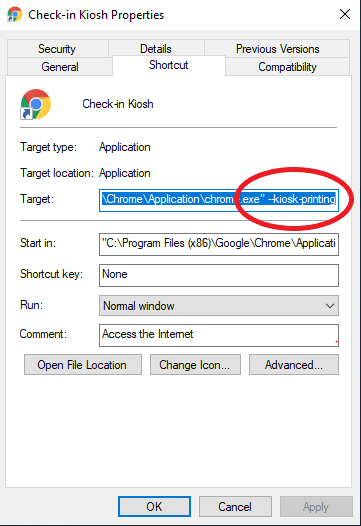
If your Target field looks like this, you have a newer version of Chrome. Highlight and delete the bold letters....\Google\Chrome\Application\chrome_proxy.exe --profile-directory=Default --app-id=kadpmjecflhjgcmakagepmdlkbmdpfhh
The final output should look like this:...\Google\Chrome\Application\chrome.exe --kiosk-printing
Or if the google chrome.exe has a double quote after it then it would look like this:...\Google\Chrome\Application\chrome.exe" --kiosk-printing - Finally, click on the General tab and rename the shortcut Check-in Kiosk, then click OK.
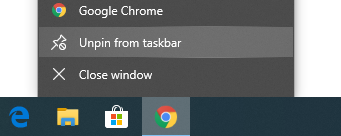
- We would recommend unpinning the Chrome icon from the taskbar to prevent confusion.
- Click on the Chrome Kiosk icon you created and go to the Churchteams login page.
- Be sure to click on the white Check-in Login button, and once on this page, save this as the home/startup page by clicking on the three vertical dots in the top corner of Chrome > Settings > On startup > Open a specific page or set of pages > Use current page. This will ensure easy access for your volunteers when starting up a check-in station on Sunday morning as it will automatically open up to your Check-In login page.