
The Favorites card appears on your homescreen dashboard and is unique to each Churchteams User, meaning you can customize your card to fit your personal ministry needs, without affecting other team members. In other words, your Favorites card can be custom-tailored to YOU!
The Tabs:
Follow Up: When adding a Note to someone’s Person Profile, there is an option to “Assign Follow-Up To,” and you can select either yourself, someone on staff, or even a Leader to assign the Note to. This will send them an email after the Note is created, and if you assigned a due date, it will send a reminder email on the day it’s due. If you assign it to someone with a Churchteams User Account, this will automatically appear on their Favorites card, displaying who the Follow-Up is with, the due date, contact information, the note that was written, and the ability to write a follow-up note or see their address on a map.

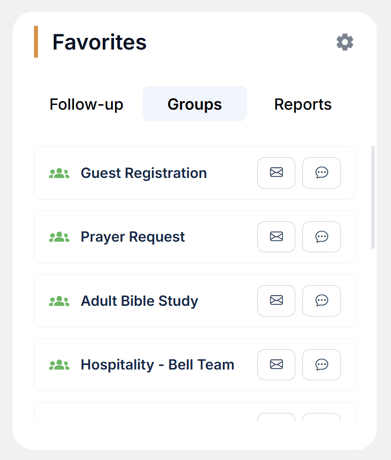
Groups: You can add any Active Groups to this tab for one-click access to the Group’s dashboard directly from your homescreen. You are also able to email or text this group directly from related buttons next to the group's name.
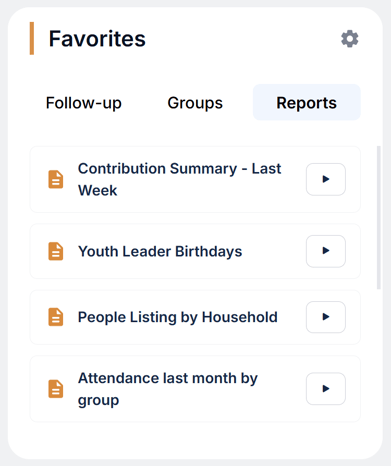
Reports: In order to add a Report to your Favorites card, you will first need to make sure you have saved the report. Once a report is saved - which you can even build reports with dynamic date ranges - you can pin them here and run the report directly from your homescreen with one click of a button.
How to edit/add to the Card:
To edit the card, click the cog button located in the top right corner of your Favorites Card .
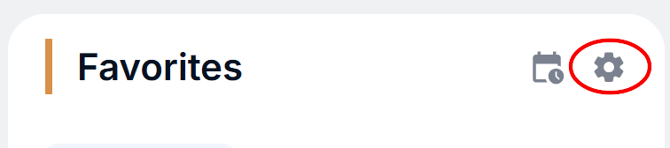
This will bring you to the settings page, where you can add any of the Groups you want, along with saved Reports, by using the dropdown menus under those sections. You will use the arrows to determine the order in which these Groups & Reports appear in a list on the card.
On the left side under “Section Order,” you are able to use the arrows to order the tabs; whatever section is at the top will be auto-selected when you log in and access your homescreen dashboard, in case you use one of these features more than the others.